
The Heirloom Oval Shape.
The shape that made the whole brand. Eight steps in Photoshop — masking, brushing, and the bracket-key trick that takes you from a flat portrait to a finished heirloom in about four minutes.
Chapters
- 0:00 What we're building — the iconic oval
- 0:42 Half-circle icon · Solid Color fill · white #FFFFFF
- 2:18 Layer mask thumbnail — what it is & why
- 3:54 Brush tool · the bracket-key sizing trick
- 5:30 Black foreground to erase · white to add back
- 7:12 Brush settings — flow 50, smoothing 10, opacity 100
- 9:08 Refining the oval shape — common pitfalls
- 10:30 Final shape · the BOOM moment
The stage-by-stage progression
Here's what your image goes through in this lesson — from after-the-crop to finished oval. Each stage corresponds to a chapter above.
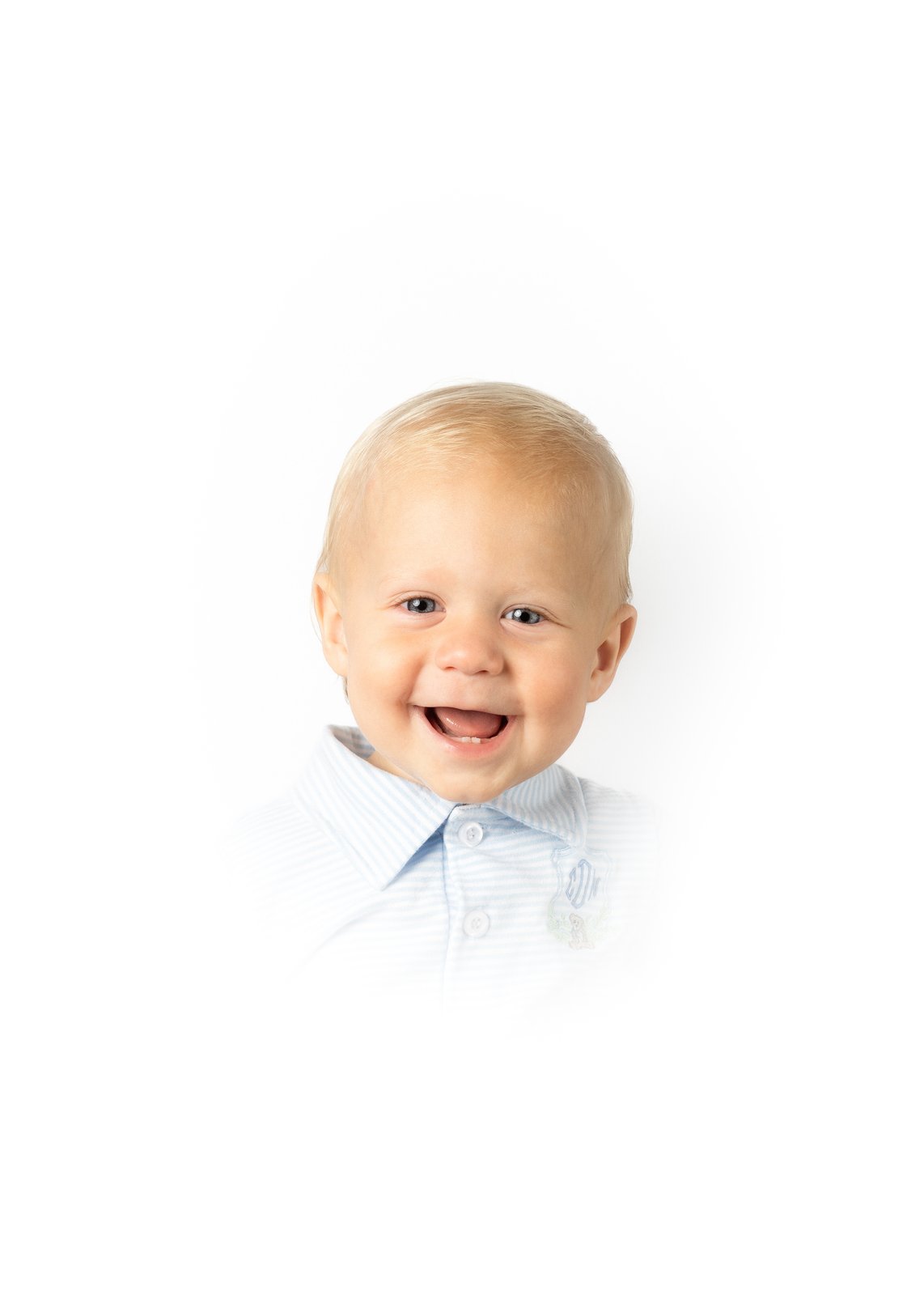
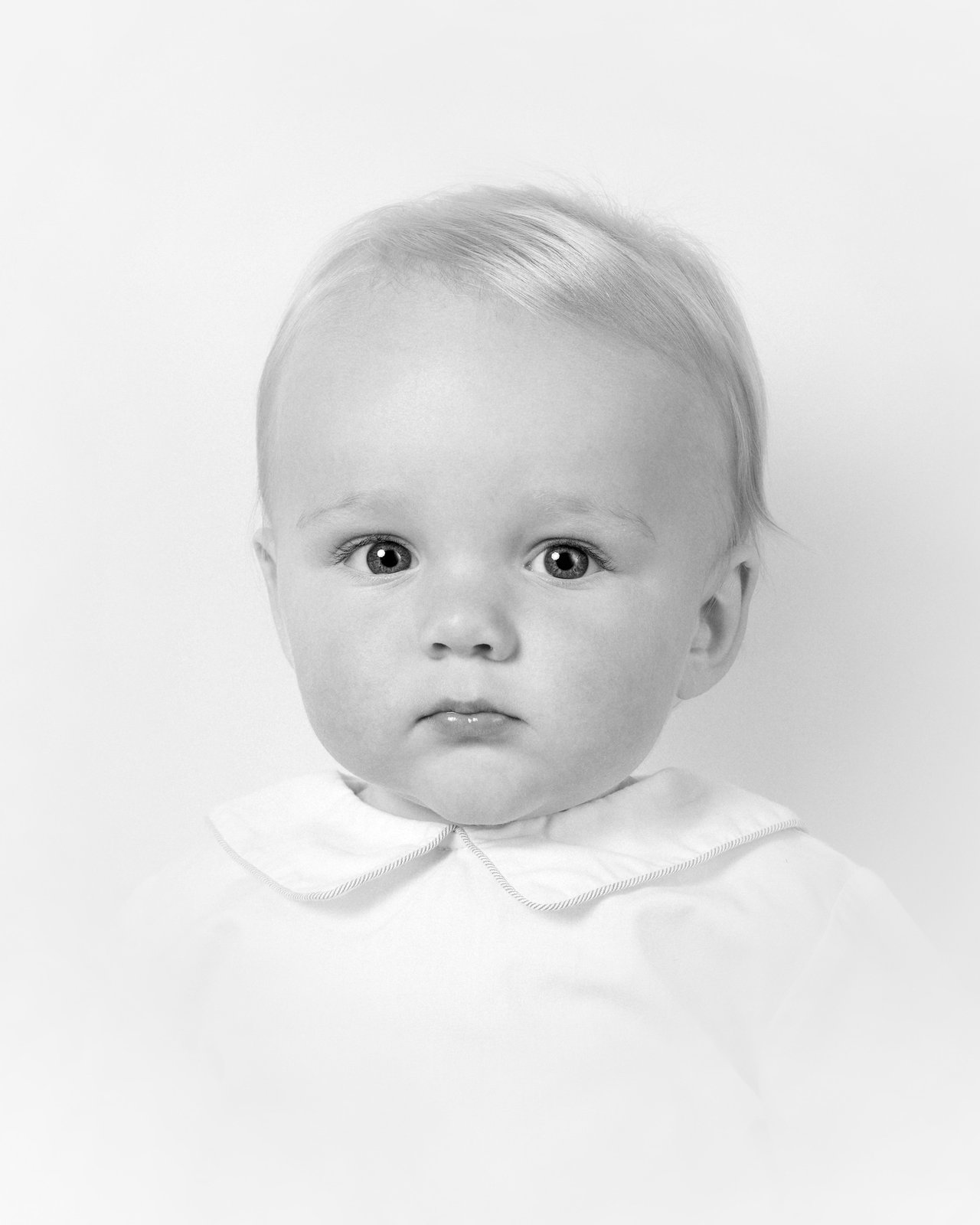
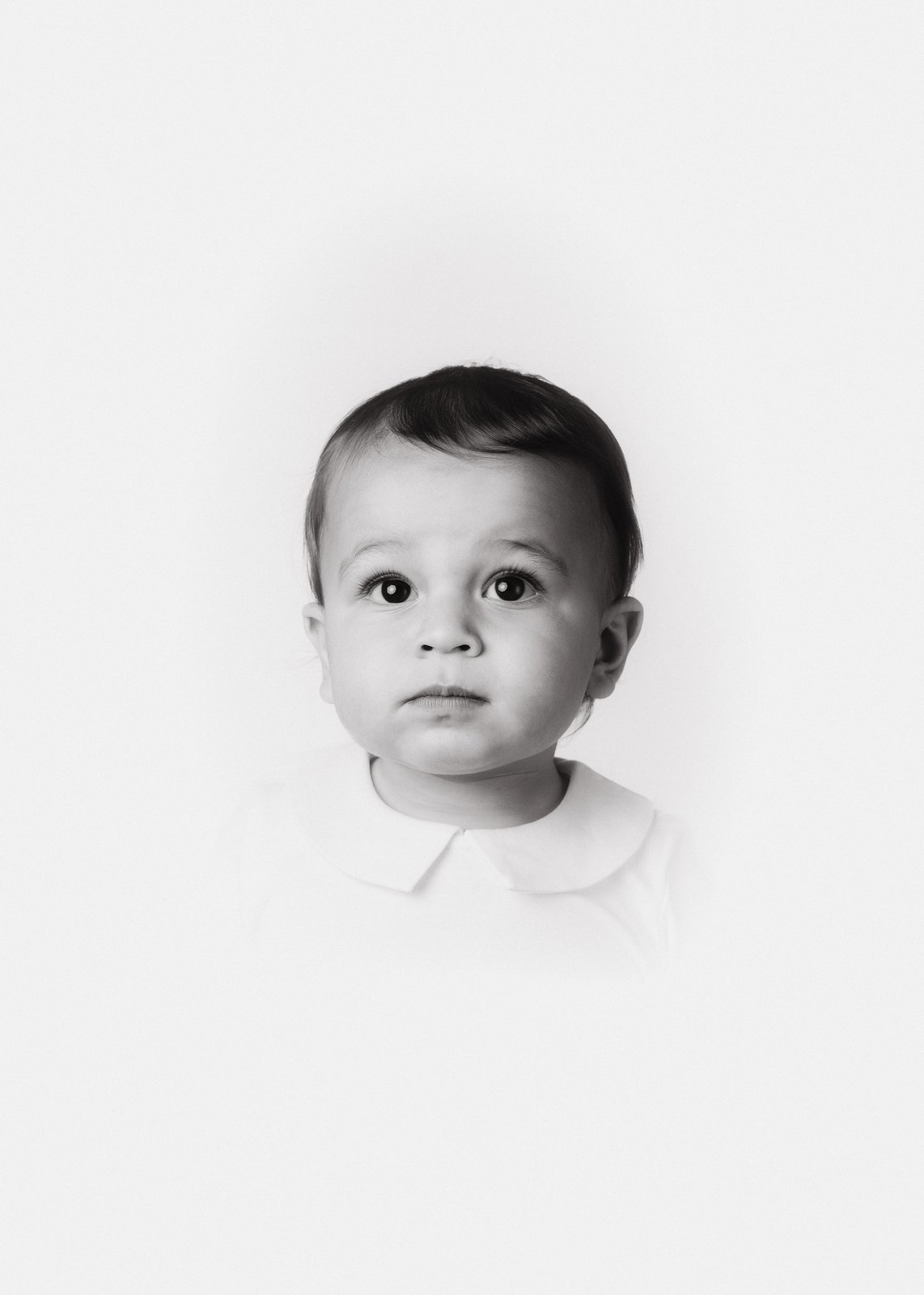
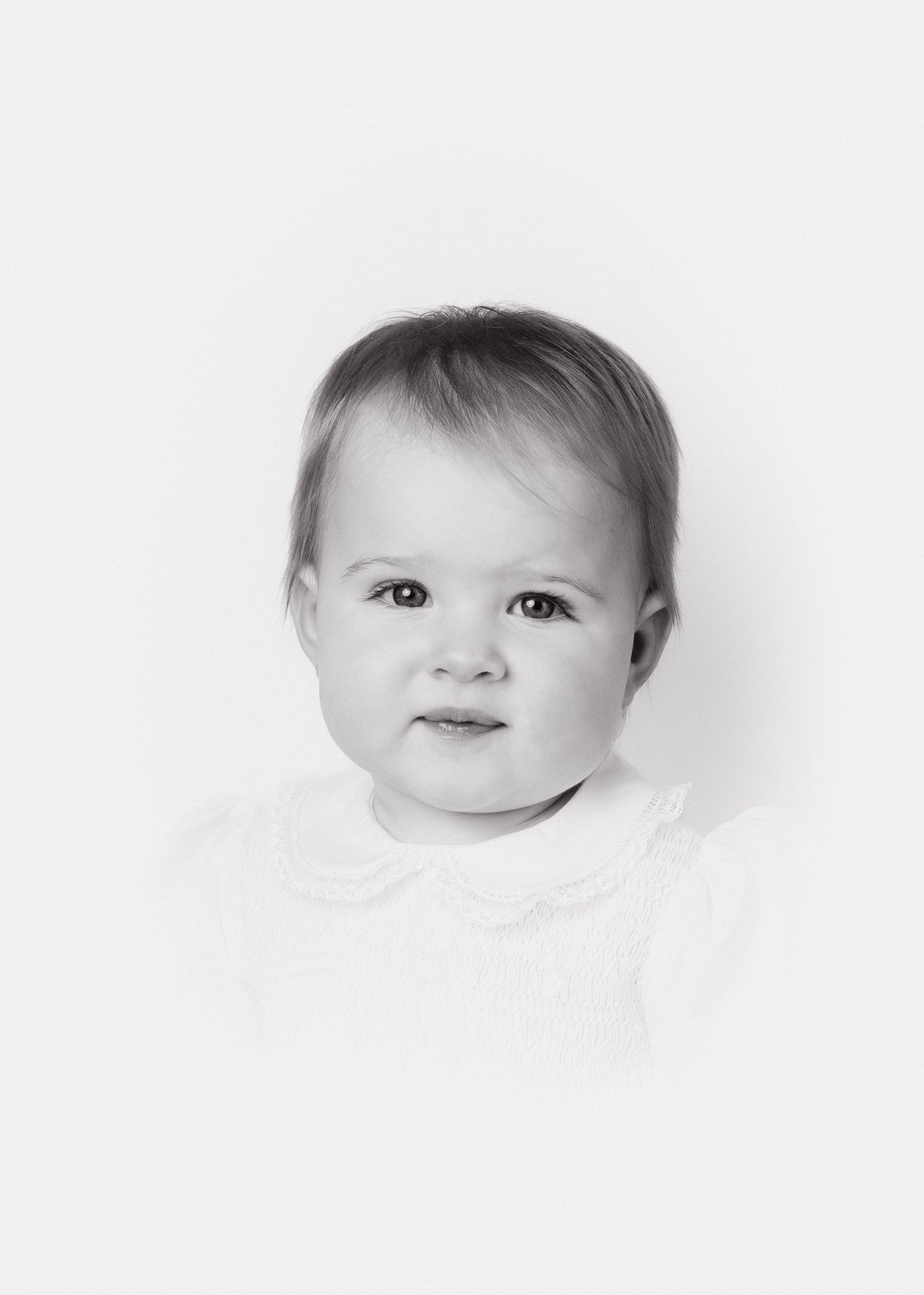
Step-by-step walkthrough
Add a Solid Color fill layer 0:42
At the bottom of your Layers panel, click the half-circle icon (Adjustment Layer button) and choose Solid Color. In the color picker, type FFFFFF for pure white. Hit OK.
Your portrait should disappear — that's normal. We're going to mask this layer in the next step.
Click the layer mask thumbnail 2:18
Next to your white fill, you'll see a white box on the layer thumbnail — that's the layer mask. Click it once. You'll know it's active when you see a small bracket around it.
Anything you paint with black will erase the white fill (reveal the portrait underneath). Anything you paint with white will add the fill back.
Switch to the brush tool, foreground to black 3:54
Press B for the brush. Hit D to reset to default colors, then X to swap so black is your foreground.
Now the bracket-key trick: [ shrinks your brush, ] grows it. Memorize these two keys. You'll use them more than any other shortcut in this lesson.
Paint the subject back in — the rough oval first 5:30
Start in the middle of where the subject's face should be and paint outward in a rough oval shape. Don't worry about the edges yet — get the gross shape right.
If you go too far and erase too much white, hit X to flip to white-foreground and paint the white back in. This is the workflow: black erases, white restores. Use both constantly.
Refine the edges with a smaller brush 7:12
Once the gross shape looks right, shrink your brush down with [ and trace around the edges to make them smooth. The oval doesn't need to be mathematically perfect — slightly imperfect actually reads more handmade and luxurious.
Pay extra attention to the top of the head and the chin — those are the two areas where mistakes are most visible.
Check brush settings if anything looks off 9:08
If your brush feels too jittery or your strokes are blocky, check the brush settings at the top of the screen. The settings Philip uses below should give you a clean, smooth result every time.
Brush settings reference
Common mistakes (Philip has seen them all)
- Painting on the wrong layer. Make sure the mask thumbnail is selected — not the color thumbnail. If you're painting the wrong thing, you'll see your fill color change instead of revealing the portrait.
- Brush too hard. A hard-edged brush leaves visible lines along the oval. Hardness should always be 0% for this step.
- Going for a perfect ellipse. A subtly hand-drawn oval reads more like an old-school heirloom frame. Don't use the ellipse selection tool — paint it.
- Forgetting to flatten before saving. Save as a PSD with layers intact so you can come back — but flatten a copy for the print export. We'll cover that in 5.7.
That's the BOOM moment. That's the shape that made the whole thing. I've done this maybe two thousand times and it still feels like magic the moment the portrait pops out of the white.
Lesson resources
5.7 — Saving + Returning to Lightroom
File → Save → autopopulates back in Lightroom. Then we create the B&W virtual copy. ~5 minutes.